
Shadow of the Tomb Raider – Definitive Edition - manual

Shadow of the Tomb Raider – Definitive EditionManual

Enter
x

Navigating this manual

Welcome to the Shadow of the Tomb Raider – Definitive Edition web manual.

You can use the Contents menu on the left to skip directly to the section you're looking for. Alternatively, click the Enter button to access the manual, and use the Next and Previous buttons to navigate page by page.

Can't find what you're looking for? There's even more information in the FAQs and ReadMe (where available): you can view them using the buttons at the top of the screen.

Warnings & Ratings

Important Health Warning About Playing Video Games

Photosensitive Seizures

A very small percentage of people may experience a seizure when exposed to certain visual images, including flashing lights or patterns that may appear in video games. Even people who have no history of seizures or epilepsy may have an undiagnosed condition that can cause these “photosensitive epileptic seizures” while watching video games.

These seizures may have a variety of symptoms, including lightheadedness, altered vision, eye or face twitching, jerking or shaking of arms or legs, disorientation, confusion, or momentary loss of awareness. Seizures may also cause loss of consciousness or convulsions that can lead to injury from falling down or striking nearby objects.

Immediately stop playing and consult a doctor if you experience any of these symptoms. Parents should watch for or ask their children about the above symptoms—children and teenagers are more likely than adults to experience these seizures. The risk of photosensitive epileptic seizures may be reduced by taking the following precautions: Sit farther from the screen; use a smaller screen; play in a well-lit room; and do not play when you are drowsy or fatigued. If you or any of your relatives have a history of seizures or epilepsy, consult a doctor before playing.

Precautions to take during use

  • Sit a good distance away from the monitor.
  • Avoid playing if you are tired or have not had much sleep.
  • Make sure that the room in which you are playing is well lit.
  • Rest for at least 10 to 15 minutes per hour while playing a video game.
ESRB: M PEGI: 18

SHADOW OF THE TOMB RAIDER © 2018, 2019 Square Enix Limited. Developed by Eidos Interactive Corporation. All rights reserved. SHADOW OF THE TOMB RAIDER, TOMB RAIDER, CRYSTAL DYNAMICS, the CRYSTAL DYNAMICS logo, EIDOS-MONTRÉAL, the EIDOS-MONTRÉAL logo, and LARA CROFT are registered trademarks or trademarks of Square Enix Limited. SQUARE ENIX and the SQUARE ENIX logo are registered trademarks or trademarks of Square Enix Holdings Co., Ltd. Developed for and published on macOS by Feral Interactive Ltd. Mac and macOS are trademarks of Apple Inc., registered in the U.S. and other countries. Feral and the Feral logo are trademarks of Feral Interactive Ltd. All other marks are property of their respective owners. All rights reserved.

1

Introduction

The end of the beginning

In the spectacular action-adventure puzzle game and thrilling finale to the Tomb Raider origins trilogy, Lara Croft must save the world from a Maya apocalypse and shape her destiny to become the Tomb Raider.

2

Installation

As part of the Steam download process, the game has already been installed on your computer. To start playing the game, read the Getting Started section.

Getting Started

  1. Double-click on the Steam application icon. By default this is located in the Applications folder on your computer's hard drive.

  2. If you are not already signed in, the Steam Login dialog will appear. Enter your account name and password, then select Login.

  3. The Steam application will launch. Select the Library tab.

  4. In the library, highlight Shadow of the Tomb Raider in the list of games on the left-hand side of the window, then select Play.

  5. The Shadow of the Tomb Raider – Definitive Edition pre-game Options window will appear. Click on the Play button. The game will launch.

  6. After the loading screens, the Main Menu will appear. Select New Game.

  7. The Select Difficulty screen will appear. If this is your first time playing a Tomb Raider game, we recommend selecting Smart and Resourceful. Once you have selected a difficulty, select Continue.

  8. After the opening video you’ll find Lara trapped in a dark cave with her leg pinned under a fallen rock. With no time to waste, it's time to break free and get back on Trinity's trail...

3

Controls

You can play Shadow of the Tomb Raider – Definitive Edition using either a keyboard and mouse or a gamepad.

The instructions in this manual refer to the default keyboard controls. If you have customized your controls or are using a gamepad, the controls listed here will not apply.

Keyboard

The default keyboard and mouse controls are detailed opposite. You can customize your keyboard configuration by selecting OptionsKey Mapping from the Main Menu or Pause Menu.

Shadow of the Tomb Raider requires you to right-click in order to perform certain commands. If you are using a Magic Mouse or a Trackpad, your secondary click may not be activated by default: see Can I play Shadow of the the Tomb Raider using my Magic Mouse or Trackpad? in the FAQs for detailed instructions on how to enable secondary click.

Move W/A/S/D
Sprint shift (hold) and W/A/S/D
Jump / climb Space
Scramble / roll / drop / dodge C
Swim up / swim down Space / Ctrl (hold)
Interact E
Melee F
Survival Instinct Q
Use Healing / Endurance / Focus / Perception plants F1 / F2 / F3 / F4 (hold)
Craft silent arrows Left Mouse button (hold)
Craft special ammo Middle Mouse button (hold)
Aim Right Mouse button (hold)
Primary fire Left Mouse button (while aiming)
Secondary fire Middle Mouse button (while aiming)
Reload R
Zoom Z
Shoulder swap Shift
Select bow / pistol / rifle / shotgun 1 / 2 3 / 4
Journal Tab
Pause Escape
4

Gamepad

You can play Shadow of the Tomb Raider – Definitive Edition using a gamepad.

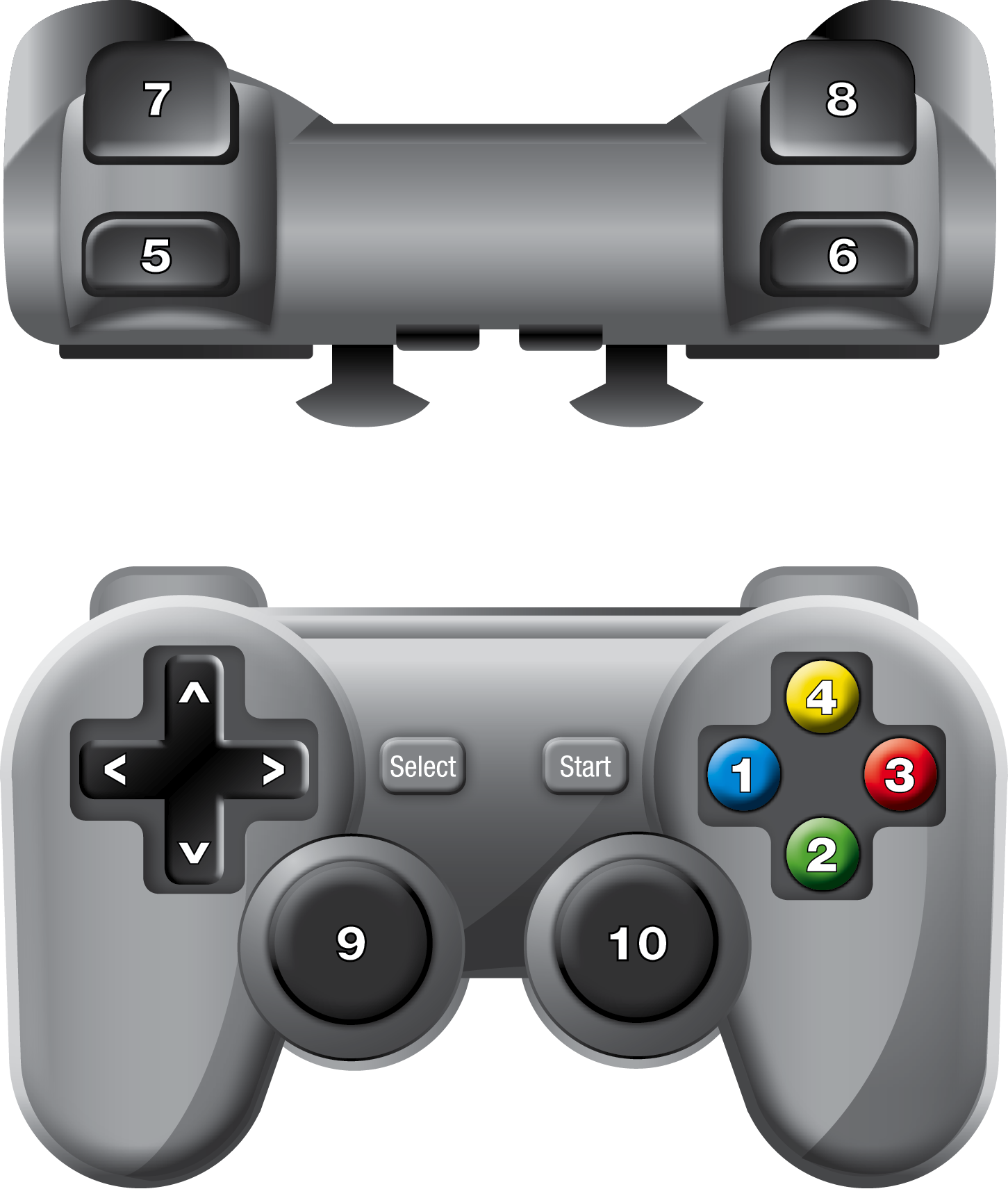
The diagram on this page is based on a standard controller layout; all gamepads have similar buttons but some may differ in layout from the gamepad shown here. For more information, see Can I play Shadow of the Tomb Raider – Definitive Edition with a gamepad? in the FAQs. NOTE: Gamepad controls cannot be customized.

Gamepad control diagram

Move
Sprint (click, while moving)
Camera
Jump / climb
Scramble / roll / drop / dodge
Swim up / swim down / (hold)
Interact
Melee
Survival Instinct (click)
Craft silent arrows (hold)
Craft special ammo (hold)
Aim (hold)
Primary fire (while aiming)
Secondary fire (while aiming)
Zoom (click, while aiming)
Shoulder swap (click, while aiming)
Reload (while aiming)
Select weapon ← / ↑ / ↓ / →
Use herbal mixtures (hold)
Pause Menu
Journal
5

Technical Support

Every effort has been made to make Shadow of the Tomb Raider – Definitive Edition compatible with current hardware. However, if you are experiencing problems when running Shadow of the Tomb Raider – Definitive Edition, please read on.

The latest version of the FAQs can be found by selecting the FAQs button in the Support tab of the Shadow of the Tomb Raider – Definitive Edition pre-game Options window (this is the window that opens when you launch the game), or by going straight to the Feral website: http://support.feralinteractive.com

Contacting Feral

If the FAQs and/or updates do not solve your problem, then please feel free to contact us. The following information must be obtained before contacting Feral Technical Support:

  • The error message displayed when the problem occurred (if any).
  • A Shadow of the Tomb Raider Report.txt file. This contains:
    • An Apple System Report of your Mac
    • Any crash logs that exist for Shadow of the Tomb Raider – Definitive Edition
    • A list of the game's contents

All the information required can be obtained by opening Shadow of the Tomb Raider – Definitive Edition and clicking on the Support tab in the Shadow of the Tomb Raider – Definitive Edition pre-game Options window. In the Support tab, click on the Generate Report button. Once the report is generated it will appear as a file in the game's Preferences folder; click on the Open Preferences Folder button to open the Preferences folder. Now click on the Create Email button. Remember to attach the Shadow of the Tomb Raider Report.txt file to your email.

In your email, please include a brief description of the problem you have experienced with Shadow of the Tomb Raider – Definitive Edition.

email: support@feralinteractive.com

6

Warranty

Please check the warranty information provided by Steam.

Credits

Originally developed by:
Eidos-Montréal, Crystal Dynamics
Originally published by:
Square Enix
macOS development by:
Feral Interactive
macOS publishing by:
Feral Interactive
7

Explore our website to read news and find our complete range of exciting games, or visit the web store to see our current deals and offers.

8