Manual
Welcome to the DiRT Rally web manual.
You can use the Contents menu on the left to skip directly to the section you're looking for. Alternatively, click the Enter button to access the manual, and use the Next and Previous buttons to navigate page by page.
Can't find what you're looking for? There's even more information in the FAQs and ReadMe: you can view them using the buttons at the top of the screen.
A very small percentage of people may experience a seizure when exposed to certain visual images, including flashing lights or patterns that may appear in video games. Even people who have no history of seizures or epilepsy may have an undiagnosed condition that can cause these “photosensitive epileptic seizures” while watching video games.
These seizures may have a variety of symptoms, including lightheadedness, altered vision, eye or face twitching, jerking or shaking of arms or legs, disorientation, confusion, or momentary loss of awareness. Seizures may also cause loss of consciousness or convulsions that can lead to injury from falling down or striking nearby objects.
Immediately stop playing and consult a doctor if you experience any of these symptoms. Parents should watch for or ask their children about the above symptoms—children and teenagers are more likely than adults to experience these seizures. The risk of photosensitive epileptic seizures may be reduced by taking the following precautions: Sit farther from the screen; use a smaller screen; play in a well-lit room; and do not play when you are drowsy or fatigued. If you or any of your relatives have a history of seizures or epilepsy, consult a doctor before playing.
© 2015 – 2020 The Codemasters Software Company Limited ("Codemasters"). All rights reserved. "Codemasters"®, “EGO”®, the Codemasters logo, “DiRT”® and “DiRT Rally”® are registered trademarks owned by Codemasters. “RaceNet”™ is a trademark of Codemasters. All rights reserved. Powered by Wwise © 2006 - 2020 Audiokinetic Inc. All rights reserved. This software product includes Autodesk® Beast™ software, © 2015 – 2020 Autodesk, Inc. All rights reserved. Autodesk and Beast are registered trademarks or trademarks of Autodesk, Inc., and/or its subsidiaries and/or affiliates in the USA and/or other countries. Ogg Vorbis Libraries © 2015 – 2020, Xiph.Org Foundation. Portions of this software are copyright © 2015 – 2020 The FreeType Project (www.freetype.org). All rights reserved.
Originally developed and published by Codemasters. Developed for and published on Linux by Feral Interactive Ltd. Linux is the registered trademark of Linus Torvalds in the U.S. and other countries. Feral and the Feral logo are trademarks of Feral Interactive Ltd.
All other copyrights or trademarks are the property of their respective owners and are being used under license. This game is NOT licensed by or associated with the FIA or any related company. Unauthorized copying, adaptation, rental, lending, re-sale, arcade use, charging for use, broadcast, cable transmission, public performance, distribution or extraction of this product or any trademark or copyright work that forms part of this product is prohibited.
As part of the Steam download process, the game has already been installed on your computer. To start playing the game, read the Getting Started section.
If it is not already running, launch the Steam application.
Select Library.
In the library, select DiRT Rally, then select Play.
The DiRT Rally pre-game Options window will appear. Click on the Play button. The game will launch.
After the loading screens, the Title screen will appear. Press the Return (↩) key.
A dialog will appear asking you whether you want to create a new profile. Select Yes.
A message will appear explaining that the game uses an autosave feature. Select OK.
The Details screen will appear. Fill in your details to create your profile, then select Continue.
The Preferences screen will appear. Use the Arrow keys to adjust your game settings, then press the Return (↩) key.
The Main Menu will appear. Select Career.
From here on in, your Crew Chief will be on hand to help you get to grips with rallying. Follow his instructions as you take to the track in the first race of your career!
DiRT Rally will automatically save your game at set points.
Use the Arrow keys to navigate the menus.
Press the Return (↩) key to confirm/select or the Escape (esc) key to cancel/back up. On some menu screens there are additional options available: look for prompts to use the F1, F2, F3 and F4 keys.
Driving assists help you control your car while racing. If you are having difficulty with the game, try enabling some of the assists.
You can enable or disable driving assists either before or during races:
System EQ
The System EQ option lets you adjust the game's audio to suit your listening environment.
Dynamic Range
The sound in DiRT Rally is mixed with a wide dynamic range to maximize audio fidelity. The default setting is High. If you have set your audio to a low volume, set the dynamic range to Low to make sure you can hear quieter sounds.
While racing, useful information is displayed on screen to help you follow the action.
NOTE: the on-screen display differs slightly depending on the game mode.
| Main HUD | |
|---|---|
| 1 | Stage progress bar |
| 2 | Co-driver icons |
| 3 | Sector split times |
| 4 | Stage timer |
| 5 | Instrument cluster |
| Instrument cluster | |
|---|---|
| 6 | Tachometer (rev-counter) |
| 7 | Gear indicator |
| 8 | Engine warning |
| 9 | Temperature warning |
| 10 | Speedometer |
| 11 | Turbo boost pressure gauge |
You can play DiRT Rally using a keyboard and mouse, a gamepad or a steering wheel. For the best racing experience, we recommend using a wheel or a gamepad with analog triggers. For more information, please see Which type of controller should I use to play DiRT Rally? in the FAQs.
The instructions in this manual refer to the default keyboard controls; if you have customized your controls or are using a gamepad or wheel, the instructions in this manual will not apply.
The default controls are listed in the sections that follow. You can customize your control configuration by selecting Options & Extras → Controls from the Main Menu.
| Steer | < / > |
| Accelerate | A |
| Brake/reverse | Z |
| Handbrake | Space |
| Look back | M |
| Camera | C |
| Recover vehicle | F2 |
| Gear up/down | S / X |
| Look up | Page Up | Look down | End | Look left | Delete | Look right | Page Down |
| Pause | Escape (esc) |
Most standard USB wheels will work with DiRT Rally.
You may need to map the game controls to inputs on your wheel and its components (such as pedals, if available) before racing. To do so, follow these steps:
Ensure that your wheel and any components are connected to your computer, then launch DiRT Rally.
From the Main Menu, select Options & Extras.
Select Controls.
Select Steer Left, then perform the action on your wheel to which you wish to map the “steer left” command.
Repeat step 4 for all the other game commands, mapping them to the desired action on your wheel.
For a list of supported wheels and instructions on how to configure your wheel, see Can I use a steering wheel with DiRT Rally? in the FAQs.
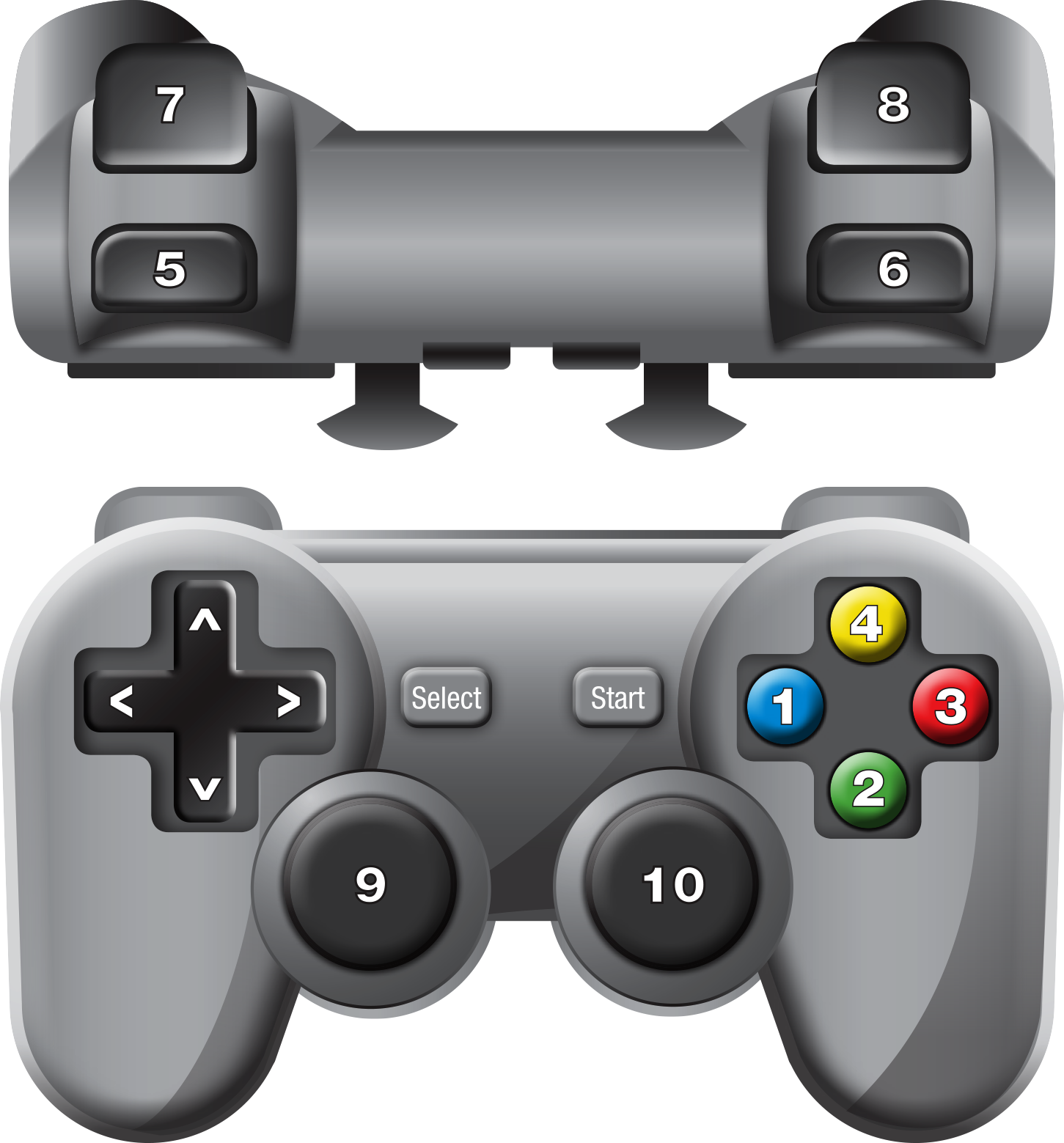
The diagram on this page is based on a standard controller layout; all gamepads have similar buttons but some may differ in layout from the gamepad shown here. For more information, see Can I play DiRT Rally with a gamepad? in the FAQs.

| Steer | ![]() |
| Accelerate | ![]() |
| Brake/reverse | ![]() |
| Handbrake | ![]() |
| Look back | (click) |
| Camera | ![]() |
| Recover vehicle | ![]() |
| Gear up/down | /![]() |
| Look around | ![]() |
| Pause | ![]() |
If you make a mistake, there’s no need to restart your race: you can use the “Recover Vehicle” ability to get back on track. To do so, press the F2 key when prompted, or press the Escape (esc) key to open the in-game Pause menu and select Recover Vehicle.
This will put your car back on the center of the track, but you'll receive a small time penalty.
You can view a replay of your race once it has ended. To view a replay, press the F1 key while viewing the results screen after completing a race.
Use the on-screen button prompts to rewind the video, play it back in slow motion or change the camera angle.
To access career mode, select Career from the Main Menu.
Compete in single-player championships and online events to earn cash, which you can spend on improving your team and buying better cars for your garage.
The garage is where you can purchase new cars, and view and modify cars you already own.
To access the garage, select Career → Garage from the Main Menu.
Cars are grouped into categories: select a category to see the available cars of that type. To buy a car, highlight it and press the Return (↩) key.
You can unlock upgrades for your cars to improve their performance. To unlock upgrades, you need to use your cars: the more you race in a given car, the more upgrades you will unlock for it.
To view available upgrades, highlight a car in the garage and press the F1 key. You'll be shown the available upgrade packs for that car, and your progress towards unlocking them.
You can also customize your cars by changing their liveries. To do so, highlight a car in the garage and press the F3 and F4 keys to switch between the different liveries.
During a rally, your car will sustain damage, which may affect its handling and performance. Damage sustained during one stage will carry over into later stages.
Between stages, your team of engineers will attempt to repair your car: a more skilled team will repair it more efficiently and keep it in better racing condition throughout the course of the rally.
To view and manage your team, select Career → Team Management from the Main Menu.
Your team includes your Crew Chief, who stays with you throughout your career, and up to four engineers, who you hire on fixed-term contracts. To hire a new engineer or replace an existing one, highlight an engineer slot and press the Return (↩) key.
The more you race with your Crew Chief and engineers, the more skilled they become.
Leagues let you take part in competitions organized by other players online.
Sign up for a Codemasters account at accounts.codemasters.com then visit www.dirtgame.com to find, join and create leagues.
To view or compete in events organized by your leagues, select Leagues from the Main Menu.
You can set up a single event or mini-championship to your own specification. Choose from any of the game modes, tracks and vehicles in the game.
During rally events, your co-driver will call out a description of the corners and hazards ahead. Icons also appear on screen with the same information.
Typical calls include:
Every effort has been made to make DiRT Rally compatible with current hardware. However, if you are experiencing problems when running DiRT Rally, please read on.
The latest version of the FAQs can be found by selecting the FAQs button in the Support tab of the DiRT Rally pre-game Options window (this is the window that opens when you launch the game), or by going straight to the Feral website: http://support.feralinteractive.com
Contacting Feral
If the FAQs and/or updates do not solve your problem, then please feel free to contact us. The following information must be obtained before contacting Feral Technical Support:
All the information required can be obtained by opening DiRT Rally and clicking on the Support tab in the DiRT Rally pre-game Options window. In the Support tab, click on the Generate Report button. Once the report is generated it will appear as a file in the game's Preferences folder; click on the Open Preferences Folder button to open the Preferences folder. Now click on the Create Email button. Remember to attach the DiRT Rally Report.txt file to your email.
In your email, please include a brief description of the problem you have experienced with DiRT Rally.
email: support@feralinteractive.com
Please check the warranty information provided by Steam.